The Overview Summary section of the ProTeams dashboard gives you a real-time snapshot of what is happening across your operation. This section surfaces the most important data at a glance so you can immediately identify priorities, bottlenecks, or urgent actions — without navigating through multiple screens.
1Appointments card
The Appointments card displays a summary of scheduled appointments for a selected time range. By default it shows today’s data, but you can adjust the time period using the dropdown.
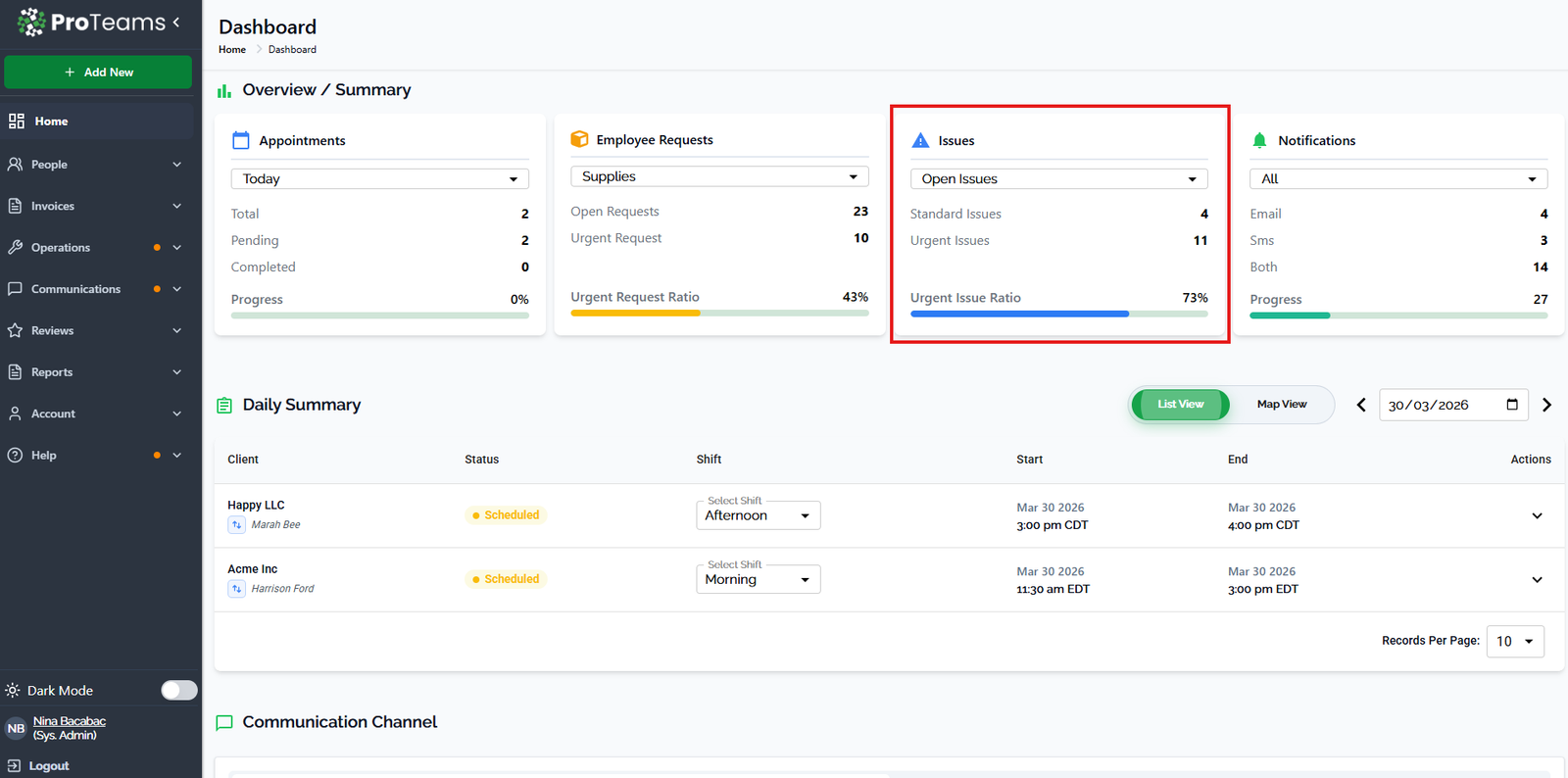
What you can see:
- Today dropdown: Controls which time period the appointment data is showing.
- Total: The total number of appointments within the selected period.
- Pending: Appointments that are scheduled but not yet completed.
- Completed: Appointments that have already been finished.
- Progress bar: A visual indicator showing the completion progress for the selected period.
If many appointments are still pending late in the day, this card signals that staffing attention or crew follow-up may be required.
2Employee Requests card
The Employee Requests card tracks internal requests submitted by your team members, such as supply requests. Use the dropdown to filter by request category.
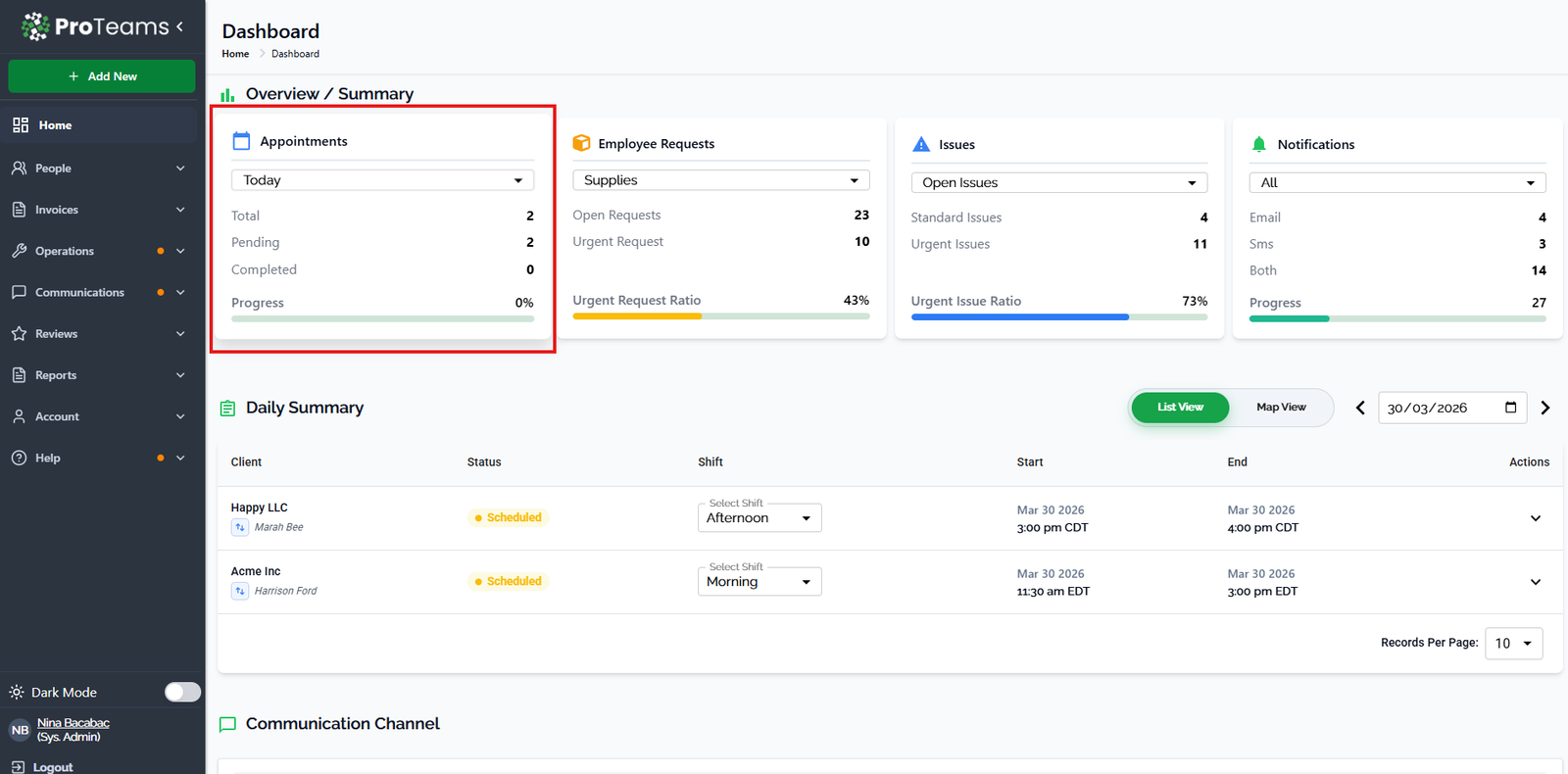
What you can see:
- Employee Requests dropdown: Filter requests by category to quickly review specific types of employee needs.
- Open Requests: Requests that are awaiting review or action.
- Urgent Requests: Requests flagged as needing immediate attention.
- Urgent Request Ratio: The percentage of requests marked as urgent compared to the total.
A high urgent request ratio means your team has unmet needs that may affect shift performance. Review and action these before end of day.
3Issues card
The Issues card gives you visibility into reported problems that require resolution. Use the filter dropdown to switch between open and closed issues.
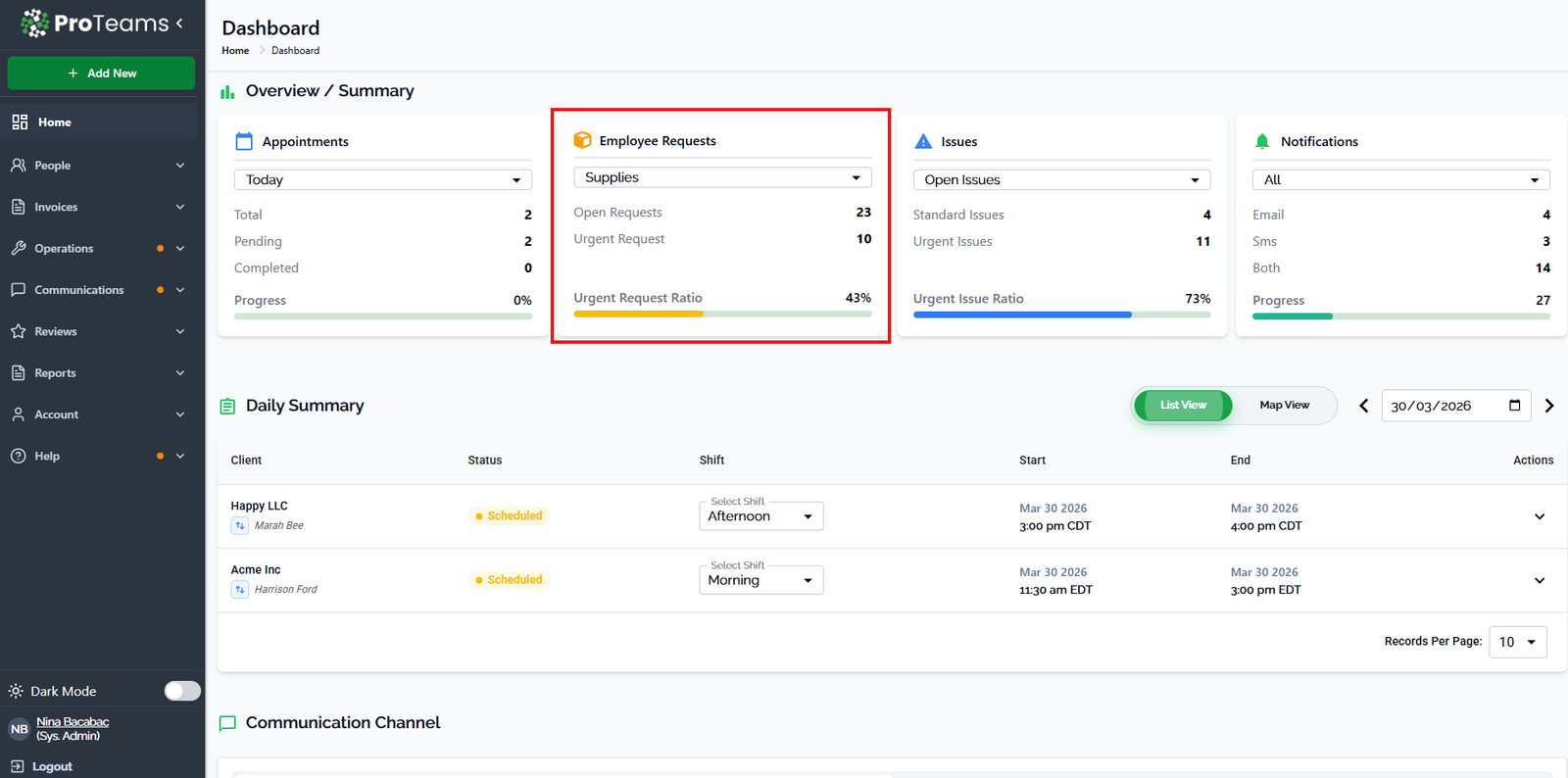
What you can see:
- Issues filter dropdown: Switch between Open Issues and Closed Issues.
- Standard Issues: Regular issues logged in the system.
- Urgent Issues: Issues marked as high priority requiring immediate action.
- Urgent Issue Ratio: The percentage of issues currently marked as urgent.
A rising urgent issue ratio is an early warning signal. Address these proactively to avoid client-facing disruptions before they escalate.
4Notifications card
The Notifications card summarizes all outgoing system communications sent during the selected period.
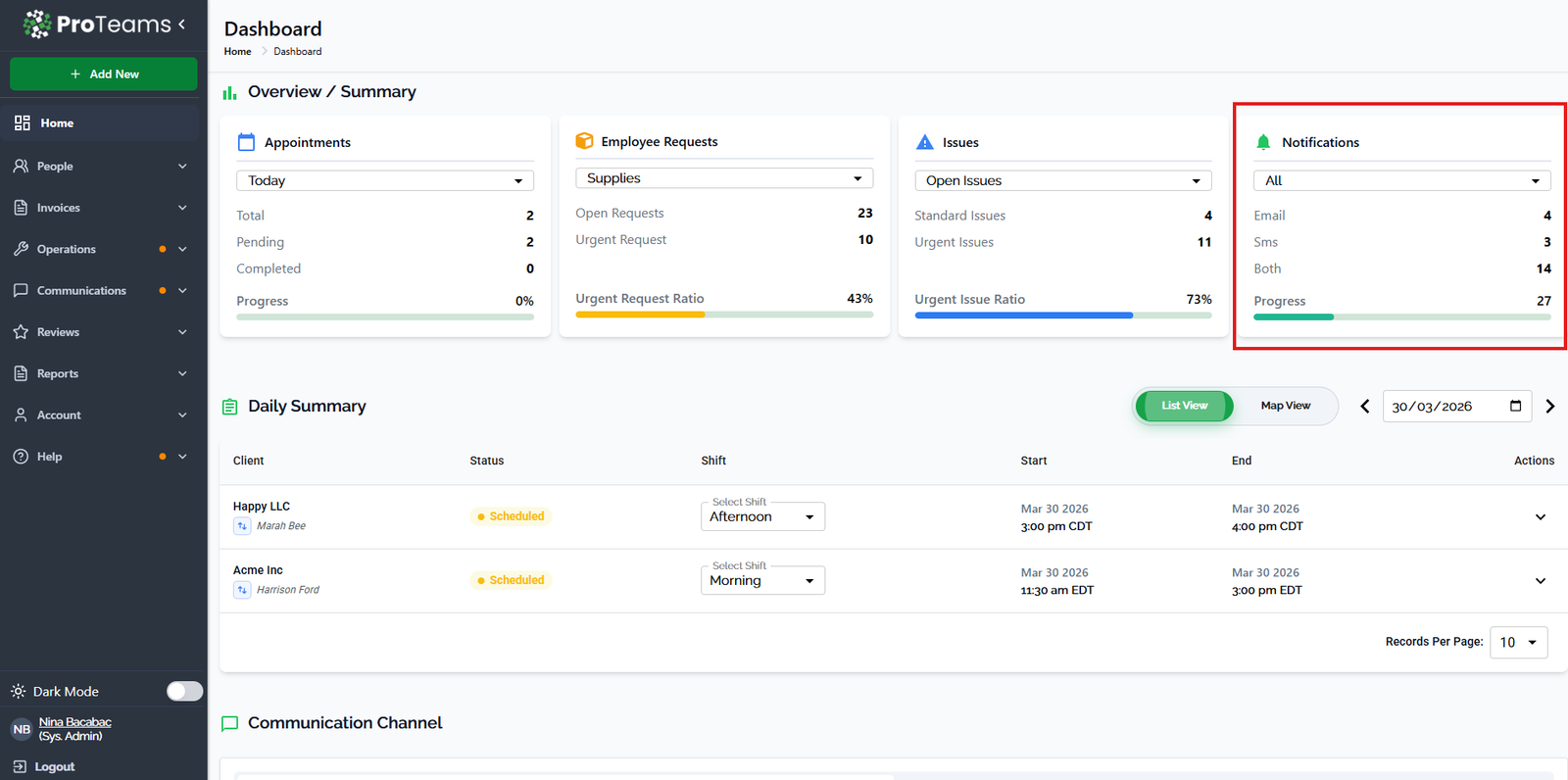
What you can see:
- Email: Number of email notifications sent during the selected period.
- SMS: Number of SMS notifications sent.
- Both: Notifications sent via both email and SMS simultaneously.
- Progress bar: A visual representation of overall notification activity volume.
Use this card to confirm automated alerts are firing correctly. If SMS counts are lower than expected, check your notification settings under Communications.
5Why the Overview Summary matters
The Overview Summary is designed to reduce friction and save time. Instead of navigating through multiple sections, you can instantly:
- Monitor daily operations across all buildings and crews
- Spot urgent issues or supply requests before they become problems
- Track appointment progress and identify staffing gaps
- Verify that communication alerts are being delivered correctly
Think of this section as your operations control center — it surfaces what needs attention so you can focus on action, not on hunting for information.